Complete Productivity System in Notion: 2026 Guide
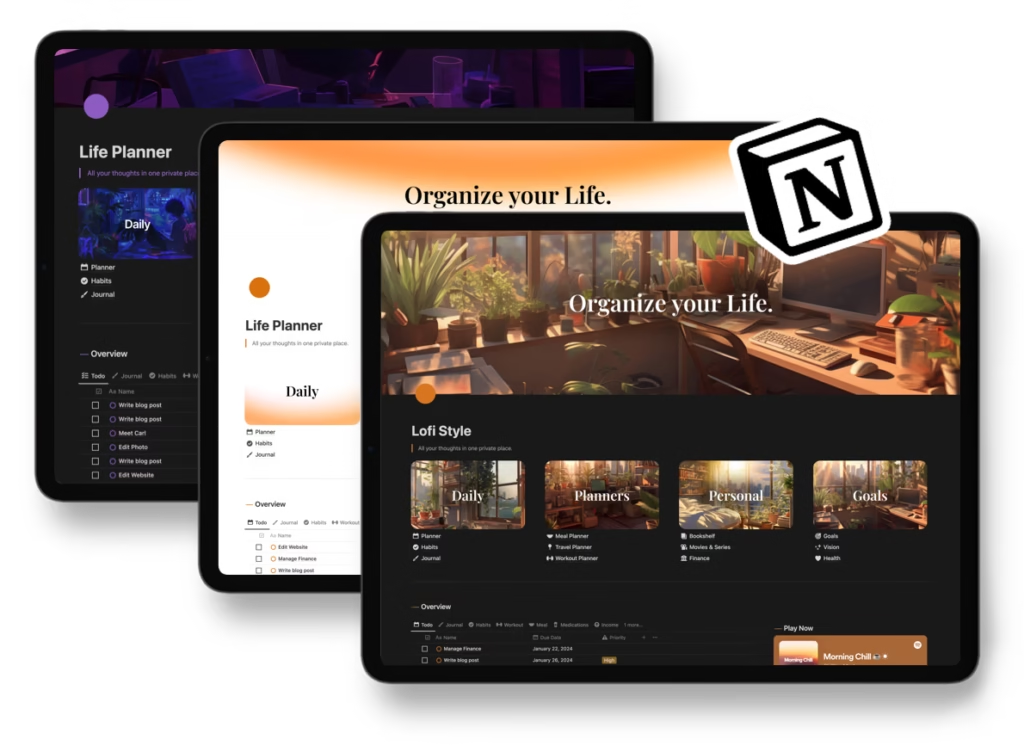
Build a complete productivity system in Notion with this comprehensive 2026 guide. Learn proven frameworks, templates, and step-by-step setup for maximum efficiency.
Are you drowning in tasks, missing deadlines, and constantly feeling overwhelmed? You’re not alone. The average professional juggles 27 different projects at once, yet 80% report they don’t have a reliable system to manage it all.
Enter Notion—the all-in-one workspace that’s revolutionizing how millions organize their work and life. But here’s the problem: Notion’s flexibility can be paralyzing. Where do you even start?
This guide walks you through building a bulletproof productivity system in Notion from scratch. Whether you’re a complete beginner or looking to optimize your existing setup, you’ll discover the exact frameworks, databases, and workflows that top performers use to get more done with less stress.
Why Notion for Your Productivity System?
Before we dive into the setup, let’s address the elephant in the room: why choose Notion over the hundreds of other productivity apps?
The All-in-One Advantage
Traditional productivity setups force you to juggle multiple tools—a task manager here, a note-taking app there, a calendar somewhere else, and documents scattered across cloud storage. Notion consolidates everything into one powerful workspace.
Your tasks, notes, projects, goals, and resources all live in the same ecosystem, eliminating the mental overhead of switching between apps and ensuring nothing falls through the cracks.
Customization That Actually Matters
Unlike rigid productivity apps that force you into their methodology, Notion adapts to how you think and work. You can implement Getting Things Done, PARA Method, Bullet Journaling, or create a hybrid system that’s uniquely yours.
The database system allows you to view the same information in multiple ways—kanban boards, calendars, tables, galleries—so you can interact with your work in whatever format makes the most sense for each context.
The Connected Workspace Effect
Notion’s relational databases create a web of connected information. Link your tasks to projects, projects to goals, goals to quarterly reviews—suddenly, everything has context. You’ll never wonder why you’re doing something or how it fits into the bigger picture.
Core Components of a Productivity System
Every effective productivity system needs five fundamental components, regardless of which methodology you follow:
1. Capture System (Inbox)
A friction-free place to dump every thought, task, and idea that enters your mind. This is your mental release valve—the place where things go so your brain doesn’t have to hold onto them.
Your capture system should be immediately accessible and require zero organizational decisions. You’re not categorizing or prioritizing here; you’re simply getting things out of your head.
2. Task Management
The engine of your productivity system. This is where captured items get transformed into actionable tasks with due dates, priorities, and clear next steps.
Effective task management isn’t about creating elaborate to-do lists—it’s about having a system that surfaces the right tasks at the right time so you always know what to work on next.
3. Project Organization
Individual tasks are fine, but most meaningful work happens in projects. Your project organization layer connects related tasks, tracks progress, and ensures nothing gets lost in the shuffle.
Think of projects as containers that hold all the tasks, notes, resources, and context needed to move something from start to finish.
4. Goal Tracking
Tasks and projects exist to serve your bigger objectives. Without goal tracking, you risk staying busy without making progress on what actually matters.
Your goal tracking system creates alignment between daily actions and long-term aspirations, ensuring every task moves you closer to meaningful outcomes.
5. Knowledge Management
As you work, you accumulate insights, resources, and learnings. A knowledge management system preserves this intellectual capital so you’re not constantly rediscovering what you already know.
This is where meeting notes, research, standard operating procedures, and reference materials live—organized so you can find them when needed.
Building Your Notion Productivity System: Step-by-Step
Now let’s build this system from the ground up. We’ll start simple and layer in complexity as we go.
Step 1: Create Your Master Dashboard
Your dashboard is productivity command center—the single page you open every morning to see everything that matters.
Start by creating a new page and title it “Productivity Hub” or “Control Center.” This will be your homepage.
Add these essential elements to your dashboard:
Today’s Focus Section: At the very top, create a callout block or toggle list for your three most important tasks today. This creates clarity before you dive into the noise.
Quick Capture Box: Add a simple table or list where you can rapidly dump thoughts throughout the day. This is your inbox in action.
This Week View: Create a linked database filtered to show only tasks due this week. View it as a board or list—whatever helps you see your week at a glance.
Active Projects: Another linked database showing projects currently in progress. This keeps your commitments visible and prevents important initiatives from stalling.
Goals Progress: Add a simple section that displays your quarterly or annual goals with progress bars or completion percentages.
The key to an effective dashboard is restraint. Only show information that drives daily decisions. Everything else creates noise.
Step 2: Build Your Tasks Database
This is the foundation of your entire system. Create a new database called “Tasks” with these essential properties:
Status: A select property with options like “Not Started,” “In Progress,” “Waiting,” “Completed,” and “Archived.” This tracks where each task stands in its lifecycle.
Priority: Another select property—I recommend “High,” “Medium,” and “Low.” Some people add “Urgent,” but that usually indicates poor planning. Most truly urgent tasks should be High priority.
Due Date: Self-explanatory but critical. Even if it’s a soft deadline, adding dates prevents tasks from languishing forever.
Project: A relation property that links tasks to your Projects database (which we’ll create next). This creates the connection between day-to-day work and bigger initiatives.
Tags: A multi-select property for categorizing tasks by area of life, type of work, or energy level required. Examples: “Admin,” “Creative,” “Quick Win,” “Deep Work.”
Effort: A select property indicating how long the task will take—”5 min,” “30 min,” “1 hour,” “2+ hours.” This helps you match tasks to available time blocks.
Next Action: A checkbox property. Check this for tasks that are immediately actionable. This is crucial—it separates tasks you can do right now from those that are blocked or need more definition.
Once your database structure is ready, create these essential views:
Today: Filter by due date equals today, sorted by priority. This is your daily action list.
This Week: Due date is within one week, also sorted by priority.
Next Actions: Filter where “Next Action” checkbox is checked and status is “Not Started.” This shows everything immediately doable.
By Project: Group by the Project relation so you can see all tasks organized by the initiative they support.
Quick Wins: Filter by effort equals “5 min” or “30 min.” Perfect for when you have small pockets of time.
Step 3: Create Your Projects Database
Projects are the containers for multi-step work. Create a new database called “Projects” with these properties:
Status: Options like “Planning,” “Active,” “On Hold,” “Completed,” and “Archived.”
Start Date and End Date: Track the project timeline.
Goal: A relation property linking projects to your Goals database. This ensures every project serves a larger objective.
Tasks: A relation to your Tasks database (this is the other side of the relation you created earlier). You’ll see all tasks associated with each project.
Progress: A formula or rollup property that calculates completion percentage based on tasks completed vs. total tasks.
Priority: Same as tasks—High, Medium, Low.
Notes: A text property or linked page for project plans, resources, and context.
Create these views:
Active Projects: Filter where status is “Active,” sorted by priority.
By Goal: Group projects by which goal they support.
Timeline: Use the timeline view to see project start and end dates visually.
Step 4: Establish Your Goals Database
Goals provide the “why” behind everything else. Create a “Goals” database with:
Time Horizon: Select property with “Annual,” “Quarterly,” or “Monthly.”
Category: Multi-select for “Health,” “Career,” “Financial,” “Relationships,” “Personal Growth,” etc.
Status: “On Track,” “At Risk,” “Achieved,” “Abandoned.”
Target Metric: Text property describing what success looks like (example: “Publish 24 blog posts” or “Save $10,000”).
Current Progress: Number property tracking where you are.
Target: Number property for your end goal.
Progress Percentage: Formula property that calculates (Current Progress / Target) × 100.
Projects: Relation to your Projects database showing which projects support this goal.
Reflection: Text property for quarterly reviews and adjustments.
Create views for Current Year, Current Quarter, and By Category.
Step 5: Set Up Your Knowledge Base
Information you’ll need again should be easy to find. Create a “Knowledge Base” database with:
Type: Select property—”Meeting Notes,” “Resource,” “SOP,” “Learning,” “Reference.”
Category: Multi-select matching your areas of work or life.
Related Project: Relation to projects for project-specific knowledge.
Tags: Multi-select for granular organization.
Date Created: Created time property so you can find recent additions.
Use views like “Recent Notes,” “By Type,” and “By Category” to access information efficiently.
Step 6: Connect Everything Together
Here’s where Notion’s power reveals itself. Go back through your databases and ensure all relations are established:
- Tasks link to Projects
- Projects link to Goals
- Knowledge items link to Projects
- Your dashboard pulls from all databases with the right filters
Add rollup properties where useful. For example, on your Projects database, create a rollup that counts how many tasks are incomplete—instant progress visibility.
Essential Workflows for Daily Use
Having the structure is only half the battle. Here’s how to actually use your system:
The Morning Routine (5 Minutes)
Open your dashboard and review your “Today” view. Select your three most important tasks—these are non-negotiable. Everything else is bonus.
Check your “This Week” view to ensure nothing urgent is sneaking up on you. Adjust priorities if needed.
Glance at active projects. Are any stalled? Add a task to move them forward.
The Capture Habit (Ongoing)
Whenever a task, idea, or commitment enters your mind, immediately add it to your Quick Capture section or directly to your Tasks database. Don’t try to organize it perfectly—just get it out of your head.
Set a daily reminder to process your capture area. During processing, decide: Is this a task? Does it belong to a project? What’s the next action? Assign properties and move it to the appropriate database.
The Weekly Review (30 Minutes)
Every week, schedule 30 minutes to maintain your system:
Review completed tasks from last week. Archive anything done.
Look at tasks due next week. Are they properly prioritized? Do they have clear next actions?
Check project statuses. Update progress percentages and status properties.
Review your goals. Are your active projects aligned with what matters most?
Clean up your knowledge base. File any loose meeting notes or resources.
This weekly review prevents your system from becoming cluttered and keeps you focused on what matters.
The Monthly Reflection (1 Hour)
Once a month, go deeper:
Review goal progress. Are you on track? What adjustments are needed?
Evaluate your project portfolio. Should any be paused or archived? Are you taking on too much?
Assess your time allocation. Are you spending time on high-priority work or getting lost in the urgent-but-unimportant?
Refine your system. Are there views you never use? Properties that don’t add value? Simplify ruthlessly.
Advanced Productivity Techniques
Once you’re comfortable with the basics, these advanced techniques will multiply your effectiveness:
Time Blocking Integration
Create a “Time Blocks” database that links to your calendar. For each block, relate it to the task or project you’ll work on. This creates accountability and helps you understand where your time actually goes.
Energy-Based Task Selection
Add an “Energy Required” property to tasks—High, Medium, Low. Match tasks to your energy levels throughout the day. Do creative, high-energy work when you’re sharp; save administrative tasks for lower-energy periods.
The 2-Minute Rule
Add a “2-Minute Task” checkbox to your Tasks database. If something takes less than two minutes, do it immediately rather than adding overhead by scheduling it. For slightly longer quick wins, use your “Effort” property to batch these during transition times.
Habit Tracking
Create a “Habits” database with daily checkboxes. Link habits to relevant goals so you see how daily actions compound into bigger achievements. Use rollup properties to calculate streak counts—nothing motivates like not wanting to break a 30-day streak.
Waiting For Management
Add a “Waiting For” status to your tasks and a “Person” property to track who you’re waiting on. Create a dedicated view that shows all blocked tasks so you can follow up proactively.
Regular Templates for Recurring Work
For tasks or projects you repeat regularly—like monthly reporting or weekly planning—create templates. This ensures consistency and saves you from reinventing the wheel each time.
Common Productivity System Mistakes (And How to Avoid Them)
Even with a perfect setup, these pitfalls can derail your productivity:
Over-Engineering the System
The temptation is to create elaborate database structures with dozens of properties and complex formulas. Resist this urge. Complexity creates friction, and friction kills consistency.
Start minimal. Add properties and databases only when you feel genuine pain from their absence. If you’re not actively using something, delete it.
Neglecting the Weekly Review
Your productivity system degrades without maintenance. Skip a few weekly reviews, and suddenly your task list is full of outdated items, your projects are stalled, and you’ve lost trust in the system.
Schedule your weekly review like an unmissable appointment. It’s the single habit that keeps everything else running smoothly.
Confusing Urgent with Important
Just because something has a deadline doesn’t make it important. Your system should highlight what matters most, not just what’s screaming loudest.
Use your priority properties intentionally. Reserve “High” priority for tasks that genuinely advance your goals, not just tasks that happen to be due soon.
Hoarding Tasks
If a task has been sitting in your system for months untouched, it’s not really a priority. Either do it, delegate it, or delete it.
During your monthly review, be ruthless. Archive anything that’s no longer relevant. Your system should reflect your current reality, not aspirational fantasy.
Forgetting to Capture
Your brain is for having ideas, not storing them. The moment you think “I should remember to…” you’ve already half-forgotten it.
Keep your capture method absurdly simple. Whether it’s the Notion mobile app, a physical notebook, or voice memos that you transfer later—the best capture system is the one you’ll actually use in the moment.
Customizing for Your Work Style
No two people are identical, and your productivity system should reflect how you work best:
For Visual Thinkers
Lean heavily on gallery views, kanban boards, and timeline visualizations. Add cover images to projects and use icons throughout your databases. Create mood boards and visual dashboards that make information instantly parseable.
For List-Oriented People
Stick with table and list views. Minimize visual clutter and focus on clean, scannable layouts. Use filters aggressively to show only what matters right now.
For Context Switchers
If you jump between multiple roles or areas of life, create separate dashboards for each context—one for work, one for personal, one for side projects. Use toggle lists to show/hide sections based on current focus.
For Deep Work Advocates
Structure your system around protecting large blocks of uninterrupted time. Create a “Deep Work” tag and filter for high-value, high-concentration tasks. Use your calendar integration to block sacred focus time.
For Chronic Overcommitters
Add a “Committed Capacity” section to your dashboard showing how many active projects and high-priority tasks you have. Set hard limits (like “Maximum 3 active projects” or “No more than 5 high-priority tasks”) and enforce them ruthlessly.
Integration with Other Tools
Notion doesn’t have to exist in isolation. Smart integrations amplify its power:
Calendar Sync
Connect Notion to Google Calendar or Outlook using tools like Zapier or Make. When you create a task with a due date, automatically create a calendar event. This ensures your time-based commitments are visible wherever you manage your schedule.
Email Integration
Forward important emails to Notion using your unique Notion email address. This captures commitments and information directly into your inbox for processing during your daily review.
Mobile Capture
Install the Notion mobile app and add the quick note widget to your home screen. This reduces friction for capturing tasks and ideas when you’re away from your computer.
Browser Extension
Use the Notion Web Clipper to save articles, resources, and research directly into your Knowledge Base with proper tags and categorization.
Measuring Your Productivity System’s Effectiveness
A productivity system should make you more effective, not just more organized. Track these metrics to ensure your system is working:
Task Completion Rate
What percentage of tasks you schedule actually get completed? If it’s below 70%, you’re either overcommitting or not being realistic about time estimates.
Project Completion Time
How long does it take to move projects from start to finish? Tracking this helps you give better estimates in the future and identify bottlenecks in your workflow.
Goal Achievement
Are you actually making progress on your stated goals, or are you busy with reactive work? Your Projects database should show clear connections to goals—if not, you’re likely spending time on the wrong things.
System Usage Consistency
Are you using your system daily? If you’re skipping days or avoiding your weekly review, that’s a signal that something isn’t working. Productivity systems should reduce friction, not create it.
Stress Levels
This is subjective but critical. Does your system give you peace of mind, or does maintaining it create anxiety? The best productivity system is one that makes you feel more in control, not overwhelmed by process.
Your Next Steps
You now have everything you need to build a world-class productivity system in Notion. But knowledge without action is just entertainment.
Here’s your implementation plan:
Week 1: Set up your core databases—Tasks, Projects, and Goals. Don’t worry about making them perfect; just get the structure in place.
Week 2: Create your dashboard and start using it daily. Focus on capturing everything and completing your daily tasks.
Week 3: Implement your weekly review habit. Use this time to refine your database properties and views based on what you actually use.
Week 4: Add your Knowledge Base and begin experimenting with advanced techniques that match your work style.
The secret to productivity isn’t finding the perfect system—it’s consistently using a good-enough system and refining it over time.
Ready-Made Solution
Building a productivity system from scratch takes time and iteration. If you want to skip the trial-and-error phase and start with a battle-tested system that incorporates everything in this guide, check out our [Premium Notion Productivity System Template].
It includes pre-built databases, dashboard layouts, automation formulas, and step-by-step video tutorials that walk you through customization. You’ll have a complete system up and running in under 30 minutes—no setup headaches, no guessing what properties to add, just a proven productivity framework ready to transform how you work.
Whether you build from scratch or start with a template, the important thing is taking action. Your productivity system is the infrastructure that supports everything else you want to accomplish.
The difference between high performers and everyone else isn’t talent or willpower—it’s having reliable systems that make effectiveness the default.
Start building yours today.